MasterClass Executive
A new kind of business education built by the world’s best.
Getting started with MasterClass Executive
Welcome to MasterClass Executive. This article walks you through the two spaces you will use throughout the program, how events and AI Labs work, what it takes to complete your coursework, and how your data is handled.
The two spaces you will use
MasterClass Executive is made up of two connected spaces. You will move between them throughout the program.
- The MasterClass Executive product at masterclass.com/executive holds your subjects, the events calendar and recordings, your AI Labs, and your saved notes. Everything that counts toward your certificate happens here.
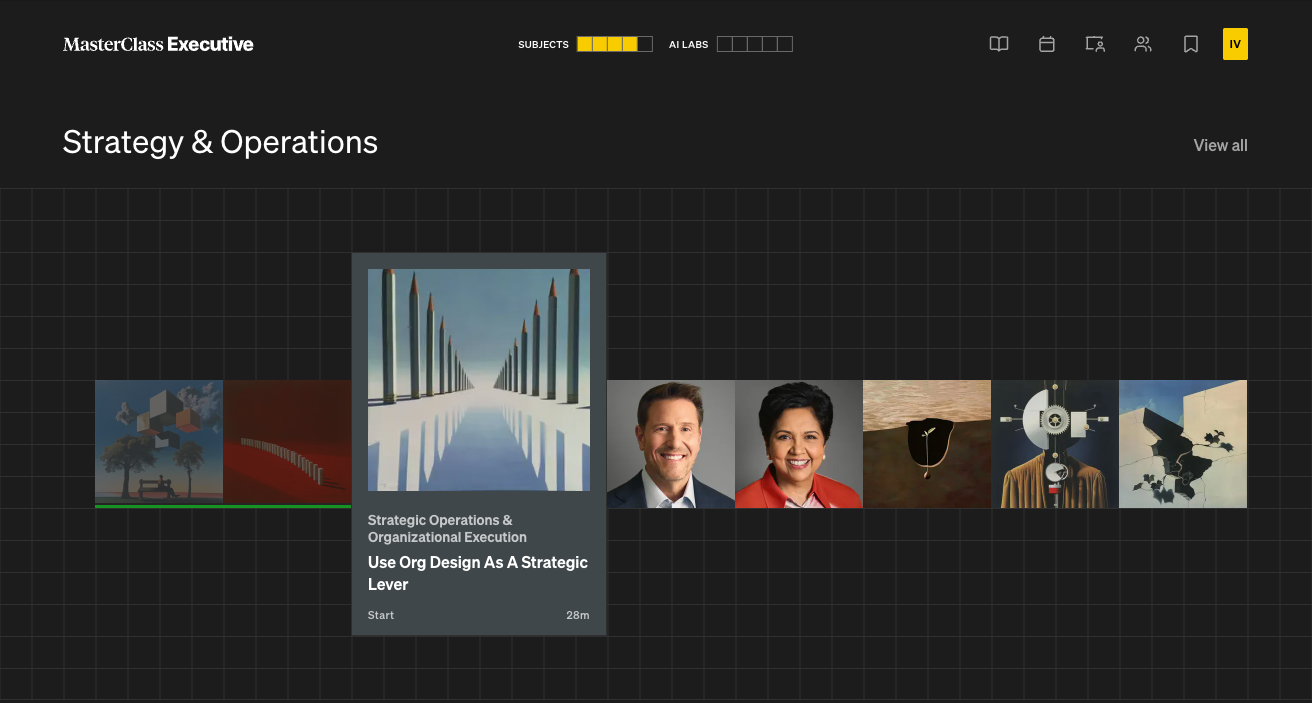
- The Community, hosted on Mighty Networks, is where you meet your cohort. It is where you network, connect with your pod, ask questions in office hours, and keep the conversation going between live events.
The Community
The Community is a private space for your cohort. Use it to:
- Network and make connections - Browse member profiles, introduce yourself, and connect with peers who share your industry, role, or goals. Every member of your cohort can see your name, profile, and professional background so you can find each other.
- Attend office hours - After each AI Lab live session, the MasterClass Executive team hosts office hours in the Community where you can ask questions and get unstuck on your project.
- Keep the conversation going - Post questions, share prompts and techniques that worked for you, and follow up on discussions from live events.
Joining Your Community and Getting Started
How to join the Community
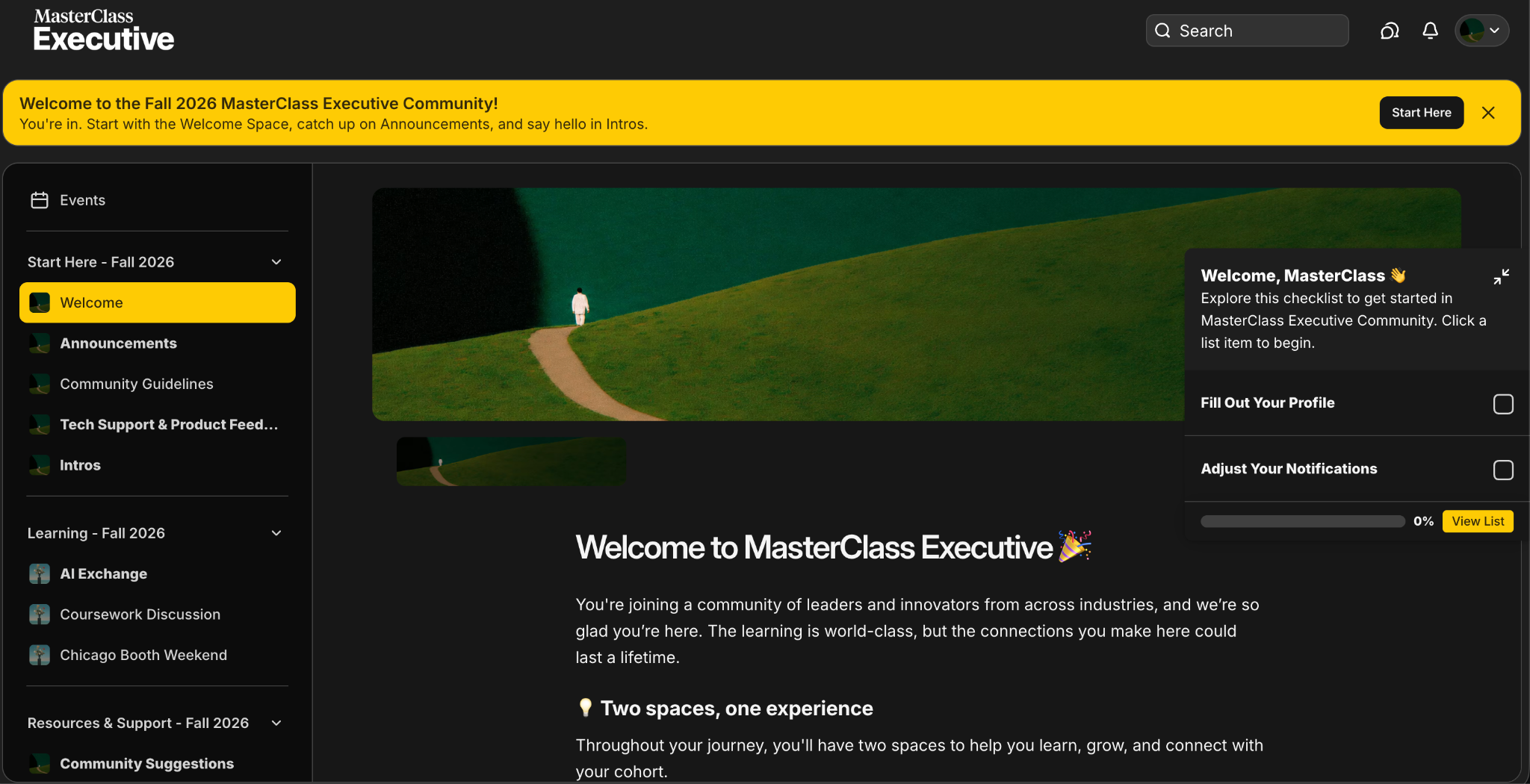
You'll get an email invitation to join the Community when your cohort starts. Here's how to get in and what to expect.
- Find your invitation. Look for an email from hello@community.masterclass.com with the subject line Your invitation to MasterClass Executive. Check your spam or promotions folder.
- Accept the invitation. Click the button in the email. It takes you to the Community, where you'll create your account.
- Set up your profile. Add your name, photo, and a short bio. Every member of your cohort can see your profile so you can find each other, so a clear photo and role go a long way.
- Start in the Welcome Space. This is your orientation. It explains how the Community works and where to go first.
- Say hello. Head to Intros, copy the intro format, and post it. Then reply to a couple of other members' intros.
Configure Community Notifications
Managing your notifications
Notifications are on by default, and this cohort is active, so it's normal to hear from the Community a lot at first. You control what reaches you. Here's how to turn things off and how to set a good baseline.
- Open your notification settings. Click your profile picture in the top-right corner, then Personal Settings, then Notifications.
- Choose how you're notified. You can get notifications by email, by mobile push, or both. Email notifications are on by default. Mobile push is off until you download the Mighty Networks app and turn it on. To go quiet entirely, switch off email and push. You'll still see updates inside the Community itself.
- Choose which spaces you want to receive notifications from. Each space has its own toggle. To turn something off, switch off that toggle.
Our recommended baseline: If you want to hear what matters without the noise, we suggest keeping these on:
- Private Chat Messages: direct messages from other members
- @Mentions: when someone tags you in a post, comment, or chat
- Updates From Your Hosts: the program team's announcements. Turn this one on, since it's off by default.
- Event Updates and Reminders: reminders for live sessions and office hours
Optional, and louder: These are off by default, so only turn them on if you want to:
- All Posts: every new post in the Community. This one can get noisy.
- Comments After You: replies to threads you've joined
Mute one thing without changing everything. To silence a single conversation, open the three-dot menu next to a chat and choose Mute.
🗒️: Chat notifications reach you by push and in-app alerts only, never email. If you turn off mobile push, you'll still see an unread counter in the Community. Need more help? Contact support.
What to expect after you join
The Community is an extremely important aspect of the MasterClass Executive experience. Not only is it the best place to connect with your peers, it is where important communication about the program lives. Once you are logged in, make sure you adjust your notifications setting in Mighty to manage what you see in the space. We recommend having notifications on for direct messages, @mentions, and Announcements.
🗒️: If you didn't get your invitation or can't sign in, contact support.
The MasterClass Executive Product
When you sign in at masterclass.com/executive, you land on your homepage. From there you can reach everything in the program:
- Events - The calendar of live sessions and the library of recordings.
- Subjects - The curriculum, taught one-on-one by your AI teacher.
- AI Labs - Hands-on projects where you apply AI to a real problem from your professional life.
Events
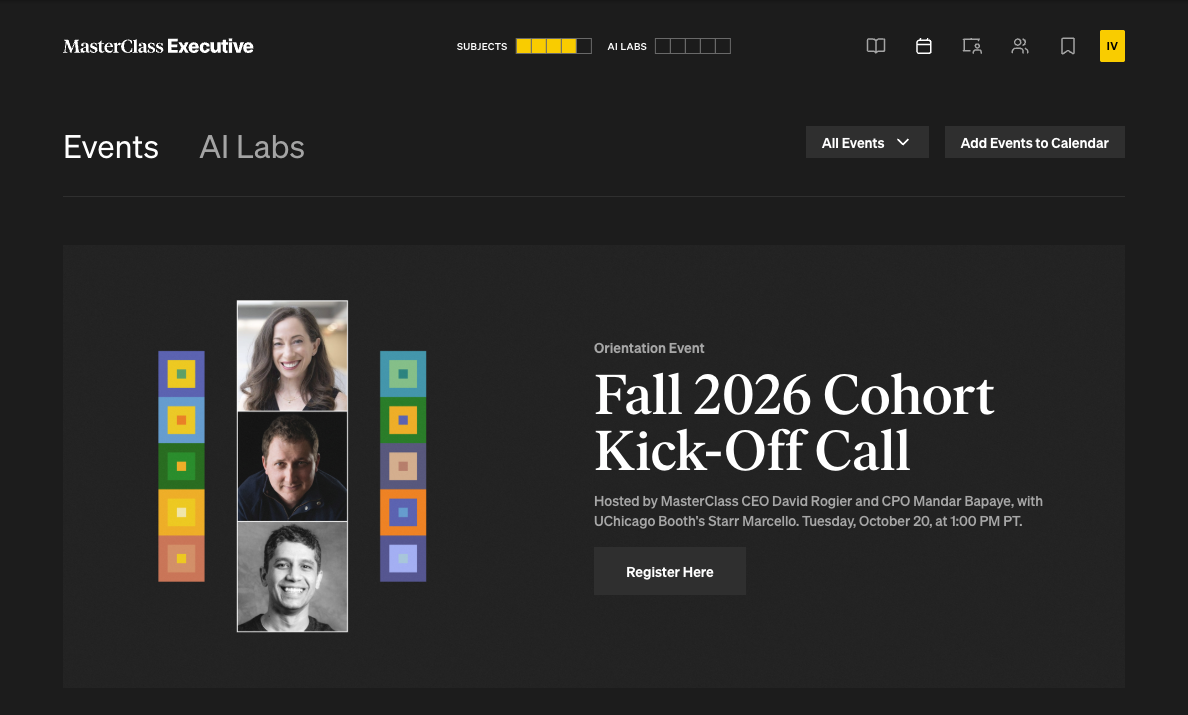
Events are live sessions hosted on Zoom with instructors, operators, and the MasterClass Executive team. You can attend live, or watch later. Every event is recorded and available to you in the product.
To attend an event live
- Go to Events in MasterClass Executive.
- Find the event you wish to attend and register in advance to receive the Zoom link to join the live event.
- At the scheduled time, join the event via the registration email you received to open the Zoom call.
To watch a recording
- Go to Events.
- Select the filter option for “past events”.
- Click into the event to play the recording
🗒️: Recordings are for your personal use within the program. Recording, screenshotting, or redistributing sessions is not permitted under the Learner Guidelines.
Subjects
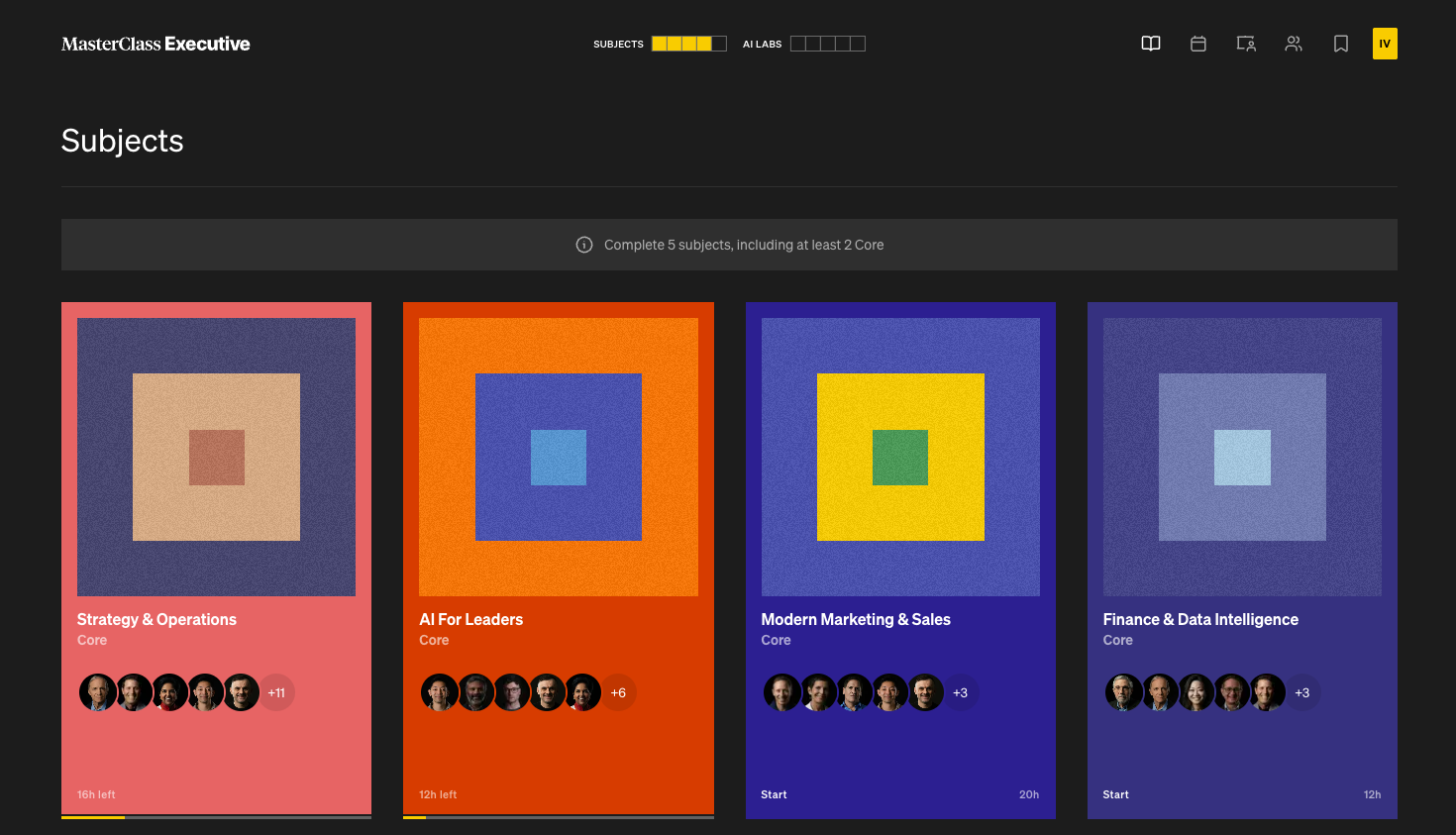
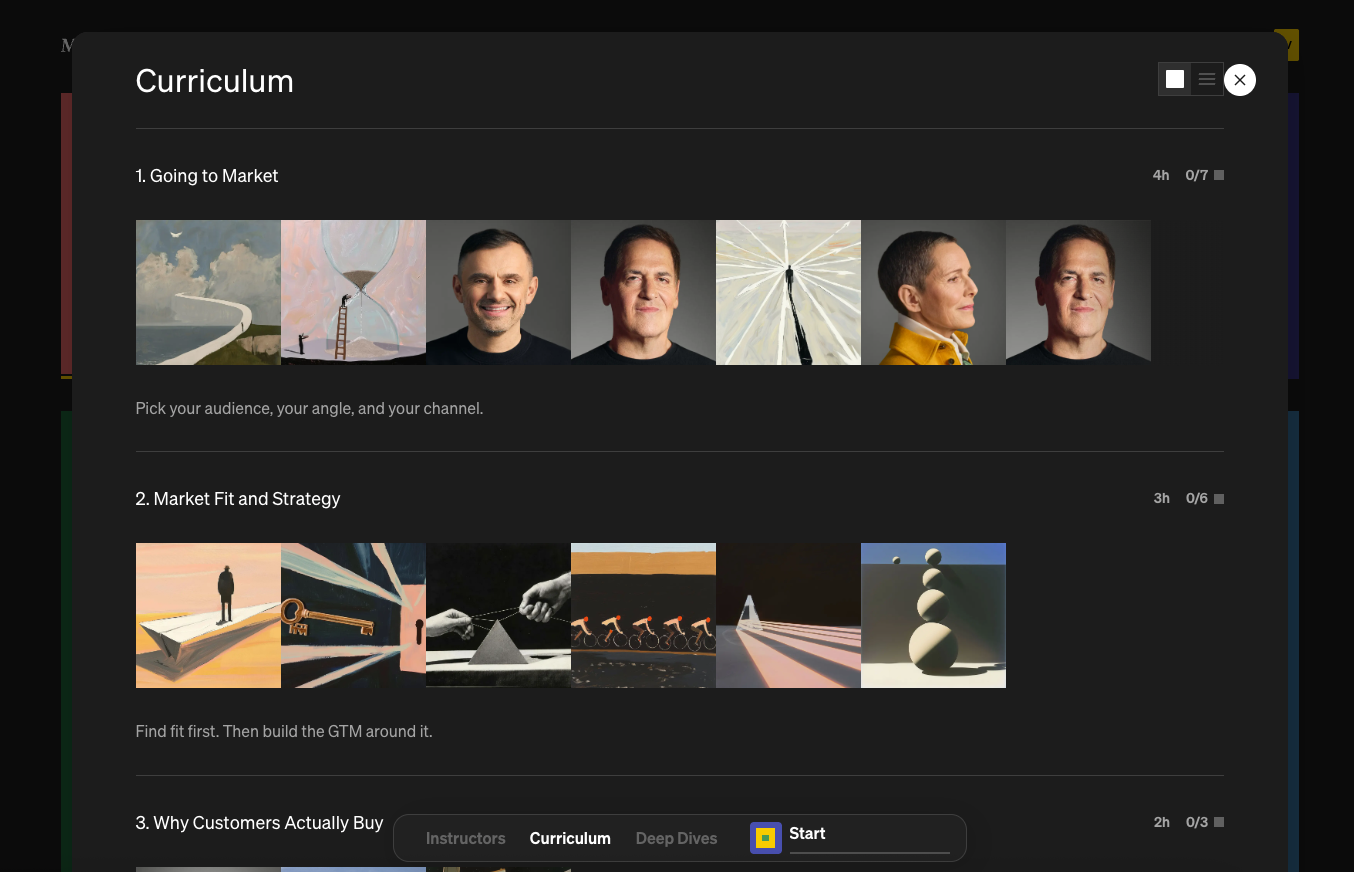
MasterClass Executive subjects are a series of topics taught one-on-one by your AI teacher. These topics include key concepts and terms, instructor videos, case studies, articles, podcasts, and interactive exercises. You work through them at your own pace, in any order.
What you need to complete
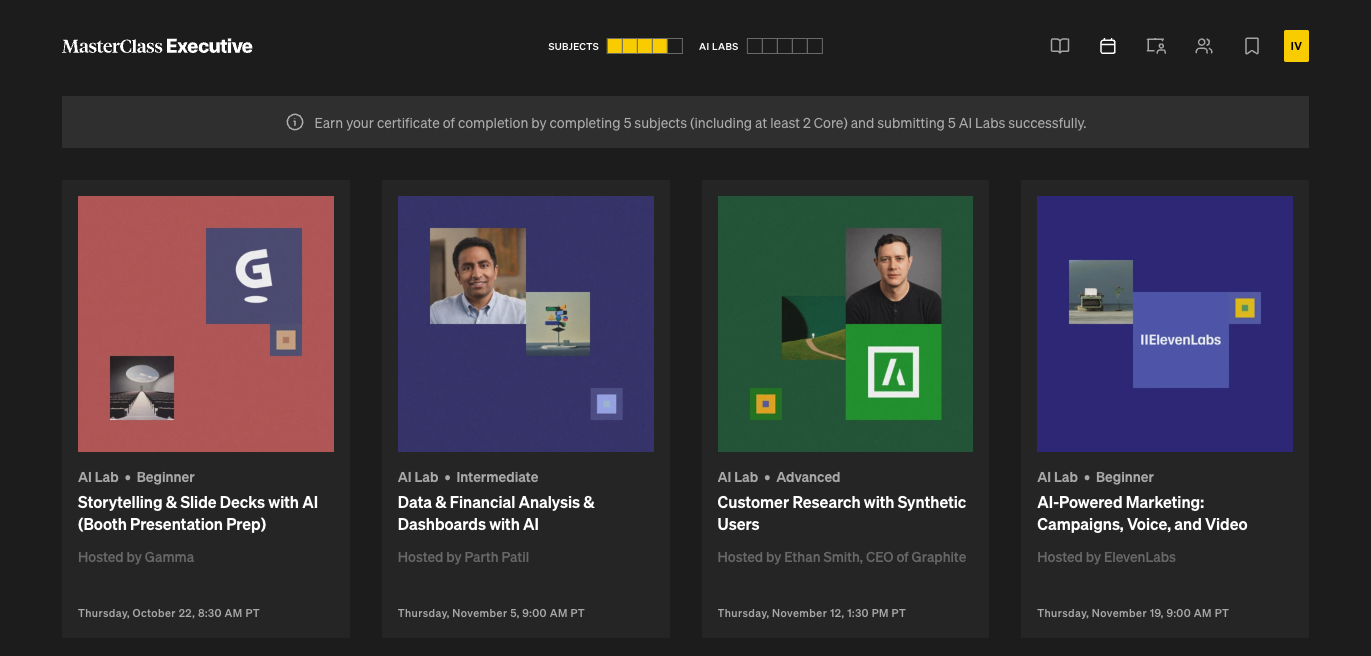
- Complete 5 subjects in total to fulfill your curriculum requirement (At least 2 of the 5 subjects must be Core subjects). To receive your certificate of completion, you will also need to submit 5 AI Labs accepted by the MasterClass Executive team.
- Core subjects are labeled with a Core badge on the Subjects page.
- You can complete as many additional subjects as you like beyond the 5 required subjects.
To start a subject
- Go to Subjects in the MasterClass Executive navigation.
- Choose a subject and select Start.
- Your AI teacher will introduce the subject and begin the first topic.
AI Labs
AI Labs are live sessions and projects that teach you a new skill or workflow, then ask you to use AI to solve a real problem from your own professional experience. There are 12 total labs per cohort, but you are only required to subject 5 labs to receive your certificate of completion.
To get started with AI Labs live sessions and projects:
- Attend the live call. Each lab opens with a live Zoom session where the host introduces the technique, demonstrates it, and explains the project brief. If you cannot attend, watch the recording on the AI Lab project page for that particular lab.
- Work on your project. Apply the technique to a problem from your professional experience and build out your project deliverable.
- Join office hours in the Community. After the live session, the MasterClass Executive team hosts office hours in the Community with the AI Lab instructor. Bring questions, show your work in progress, and get feedback from the team.
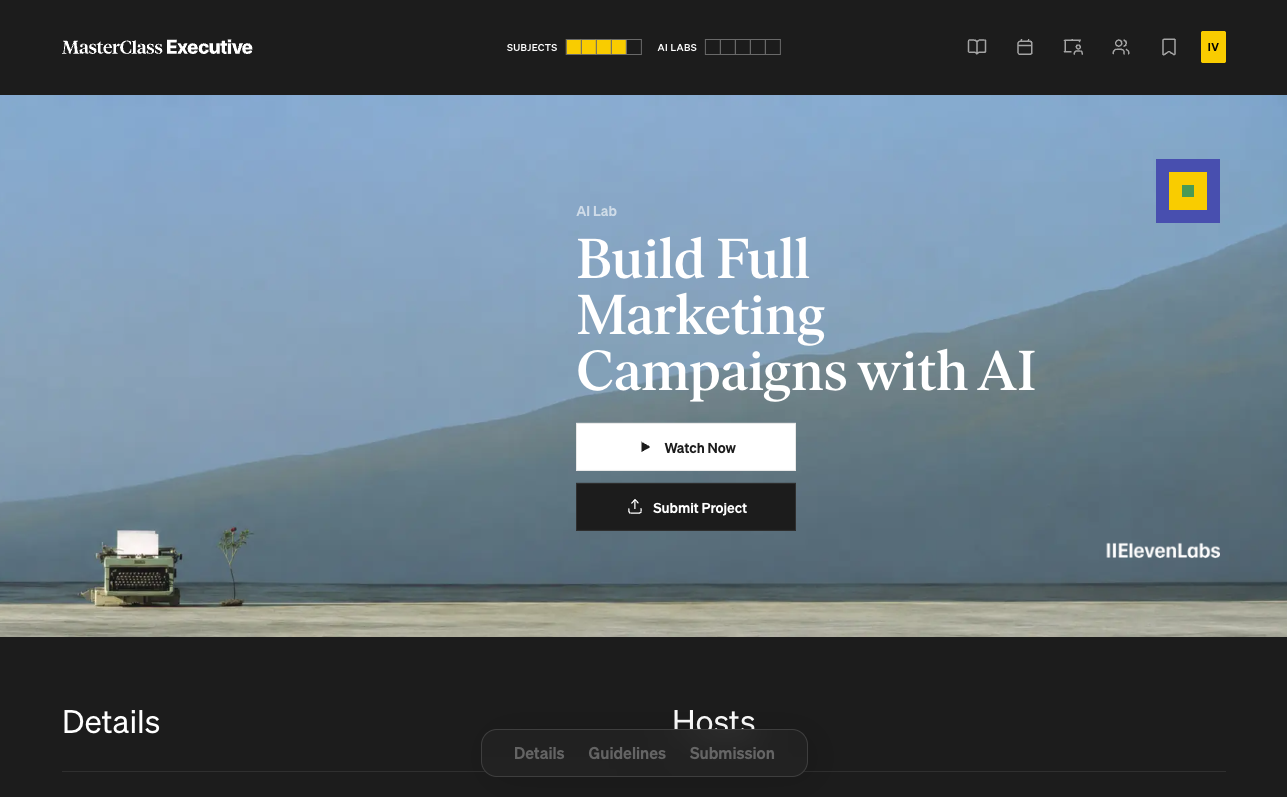
- Submit your project for review. When your project is ready, submit it from the AI Lab landing page in the MasterClass Executive product. The MasterClass Executive team reviews every submission and sends feedback. Projects are scored on how well they fit a real problem, the quality of the deliverable, how meaningfully you used AI, and how clearly you presented.
🗒️: Do not include proprietary or confidential information from your employer or clients in a lab submission without permission. If your project draws on real company material, anonymize sensitive details first.
Features
Working with your AI teacher
Your AI teacher guides you through each subject explaining concepts, sharing exercises, and adapting to your preferences. It leads the lesson, but the program works best when you treat it as a conversation rather than a lecture.
To get the most out of each lesson:
- Ask questions. If something is unclear, say so. Ask for another example, a simpler explanation, or a deeper one.
- Push back. If you disagree with a framework or think it does not apply to your situation, say that. The AI teacher will engage and adjust.
- Share your context. Tell the AI teacher about your role, industry, the problems you are working on, and your goals. It will use this context to curate the material to your unique situation, and make the concepts more relevant to you.
Notes and saves
Anything you save or note while learning is stored with the subject it came from, so you can always find it again in context.
- Save a response. When the AI teacher shares a framework, example, or explanation you want to keep, select the Save icon on that message.
- Take a note. Add your own notes as you go. Notes are attached to the subject you are working in.
- Find everything later. Go to Saves in the MasterClass Executive navigation to see all of your saved items and notes, organized by subject.
Dictation
If you prefer to speak rather than type, you can dictate your messages to the AI teacher.
- In the chat bar, select the microphone icon.
- Speak. Your words appear in the chat bar as you talk.
- Edit the text if you need to, then send your message as usual.
🗒️: Dictation is available on supported desktop browsers. The first time you use it, your browser will ask for permission to use your microphone.
Memory
The AI teacher remembers what it learns about you so it can better curate your lessons. As you work through subjects, it keeps track of things like your role and industry, the goals you have shared, the examples and problems you have brought in, and the preferences you have expressed.
That memory carries across topics and subjects. For example, if you told the teacher in one subject that you lead a sales team, it can use that context when you begin another.
You stay in control of what the teacher remembers. You can review what it has learned about you, change it, or delete it at any time.
- To change what the teacher knows, tell it directly in the conversation ("I've moved into a new role" or "Stop assuming I work in finance") or update it in your settings.
- To edit or delete memory, clear it from your settings. The teacher will start fresh.
Artifacts
Once you complete a subject, you will find a shareable artifact for that subject in your profile.
Program Completion Criteria
To receive your certificate of completion from MasterClass Executive you must complete 5 subjects (2 of which must be Core subjects), and submit and pass 5 AI Labs projects. See the Learner Guidelines for the full completion requirements.
Need more help?
- Read the MasterClass Executive Learner Guidelines
- Ask in the Community
- Contact the MasterClass Executive support team